
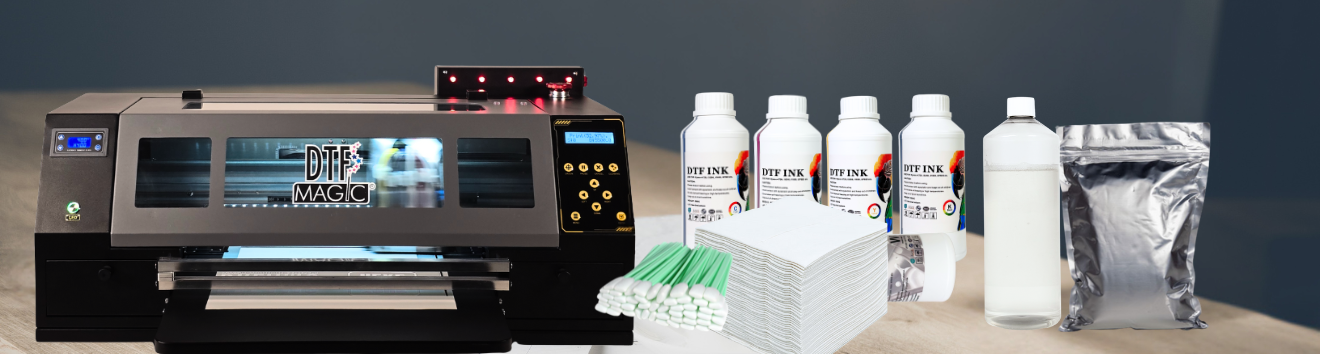
The holiday season often means a well-deserved break for you, but it can mean extended downtime for your DTF Magic Printer Pro 30. Direct-to-Film (DTF) printers thrive on regular use, and prolonged idleness can lead to clogs and costly repairs.
This guide provides crucial, step-by-step DTF printer maintenance tips to ensure your Magic Printer Pro 30 is ready to jump back into production right after the holidays, saving you time and frustration.
The Golden Rule of DTF Printer Maintenance
The single best way to keep your DTF printer in optimal condition is regular use.
Ideal Scenario: Even if you have no production orders, try to run a small print and perform a basic cleaning every two days. This keeps the ink flowing and prevents pigment settling.
Extended Downtime Preparation: Your Pre-Holiday Checklist
If your printer must remain inactive for longer than usual, follow this deep maintenance procedure in addition to your regular daily upkeep.
Part 1: Head Cleaning and Nozzle Check
This ensures the printhead is perfectly clean before applying the storage procedures.
If the printer has not printed recently, start at Step 1. If the printer just finished printing and the Nozzle Check is good, skip to Part 2.
- Connect and Clean: Open the PrintExp software and connect to your printer. Click “Clean” and select a Strong Cleaning.
- Run Nozzle Check: Click “Check,” then click “OK” to print a Nozzle Check pattern.
Evaluate:
- Good Check: If the pattern is perfect (or missing just a few dashes per color), you can proceed to make a small test print (Step 5).
- Bad Check: If there are many missing lines or gaps in one or more colors, perform another Strong Cleaning and print another Nozzle Check.
- If the Nozzle Check is still poor after 4 cleanings, do not continue aggressive cleaning. Instead, power down the printer with a Wet Cap applied (as per your usual procedure) for one hour, then try the cleaning sequence again.
- Final Print: Once the Nozzle Check is good, make a small test print to ensure fresh ink is coating the nozzles.
Part 2: Applying the Wet Cap for Storage
The “Wet Cap” technique keeps the nozzles moist and protected during prolonged shutdown.
- Light Clean: Click “Clean” and select a Light Cleaning.
- Move Head: Move the printhead to the far left side.
- Clean Capping Station: Fill the capping station with a small amount of DTF cleaning fluid.
- Wipe Printhead Edges: Using a clean cleaning stick, carefully wipe the edges and surrounding area of the printhead.
- Gently Wipe Nozzles: Take a fresh cleaning stick and dip it into the cleaning fluid. Very gently push the cleaning stick against the nozzle plate to clean it, being extremely careful not to apply excessive force.
- Clean and Refill Capping Station:
- Remove the old cleaning fluid from the capping station using a lint-free cloth (and a cleaning stick, if necessary).
- Thoroughly clean the capping station itself.
- Refill the clean capping station with fresh DTF cleaning fluid.
- Return Head: Press RETURN to move the printhead back over the capping station.
- Power Down: Wait for the printer to raise the capping station against the printhead, then turn off the printer.
- Secure Seal (Crucial Step): Carefully turn the manual knob a small amount to the right to ensure the capping station is sealed tightly against the printhead. Be careful not to turn it so far that the capping station drops back down.
Additional Preparation Steps
Waste Ink Tank & Drainage
- Empty and Clean: Remove the waste ink tank. Empty the contents, and thoroughly rinse the tank with water until all ink residue is removed.
- Reinstall: Place the clean, empty waste ink tank back into the printer and re-insert the drainage tube.
DTF Film Media Storage
- Remove Film: Remove any film media currently loaded in the printer.
- Release Pressure: Leave the pressure rollers (pinch rollers) in the open (up) position to prevent them from developing flat spots or indentations.
- Store Media: Place the unused film in a plastic bag and store it upright to prevent damage to the coating and curling or damage.
Curing Oven Check
- Air Curing Oven Filter: This is the perfect time to inspect and potentially replace the filter in your DTF Station Phoenix Air Curing Oven. A fresh filter ensures optimal curing conditions when you return.
🎬 Watch the Video!
For a visual guide on these maintenance steps, please visit our knowledge base.
By following these steps, you are actively protecting your investment. While regular printing is always best, this thorough preparation ensures you can start the new year with minimal headaches and maximize the uptime of your DTF Magic Printer Pro 30.
 4.7
4.7