
Definition: Print & Cut is a two-stage production workflow where a design is first digitally printed onto a transfer medium (such as vinyl, sticker paper, or heat transfer paper) and subsequently processed by a cutting plotter to trim precisely along a specific contour path. This process relies on Registration Marks (optical eye marks) printed alongside the design, which allow the cutter’s sensor to align the blade perfectly with the printed graphics.
Read more
Why It Matters: Impact and Use
For print shops and garment decorators, the Print & Cut workflow is a versatile solution for creating custom-shaped labels, opaque garment transfers, and intricate decals. Demonstrating mastery of this precision-based workflow is a core element of E-E-A-T (Expertise, Authoritativeness, and Trustworthiness).
- Solving the “No-White” Printing Issue: Most standard CMYK laser and inkjet printers cannot print white ink. When printing on dark garments using opaque media (like TheMagicTouch OBM 5.4), the “white” in the design actually comes from the base of the transfer paper itself. Print & Cut allows you to trim away the excess white border, leaving only the desired shape.
- Complex Contours: Unlike manual trimming with scissors, a cutting plotter can handle complex geometries, sharp angles, and internal “cavities,” ensuring a professional, retail-ready finish for products like TheMagicTouch Tattoo 2.1 or DCT 4.5W water slide decal transfer paper.
- Workflow Automation: Modern RIP (Raster Image Processor) software can automatically generate “Bleeds” and “Contour Offsets.” This technical accuracy prevents the dreaded “white sliver” at the edge of a design if the cutter is slightly off-calibration.
- Media Versatility: This process is the industry standard for:
- TheMagicTouch Stickers: Creating custom-shaped branding labels.
- TheMagicTouch OBM 5.4: Creating vibrant transfers for dark textiles.
- TheMagicTouch Tattoo 2.1: Producing temporary skin tattoos with exact edges.is process is the industry standard for:

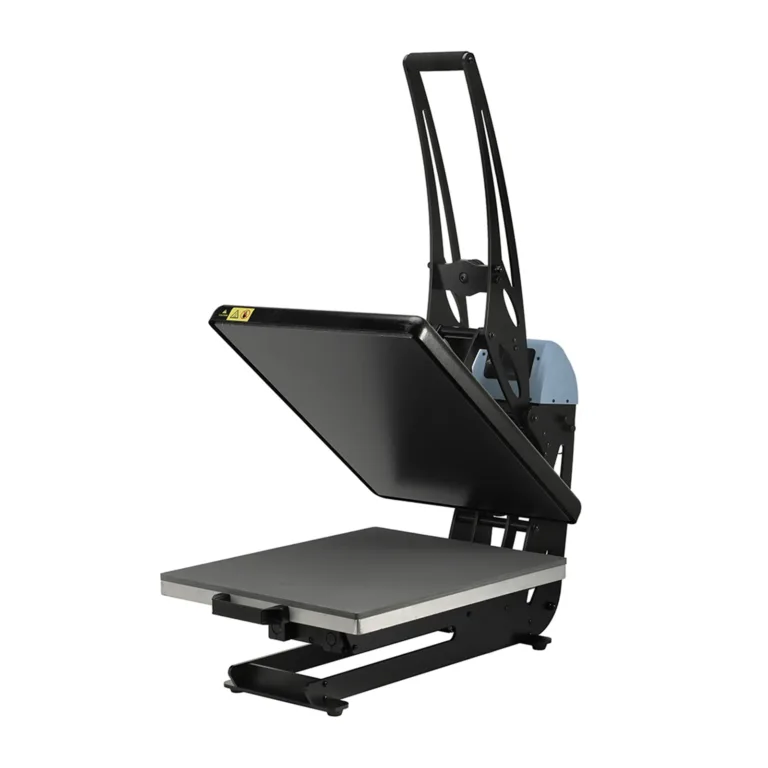
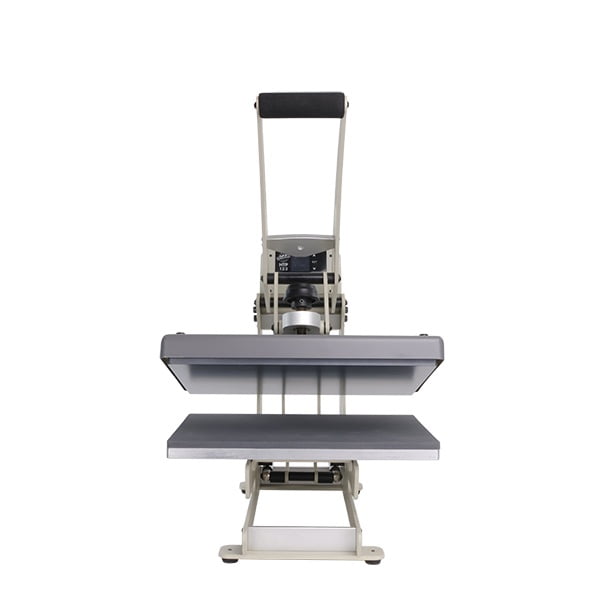
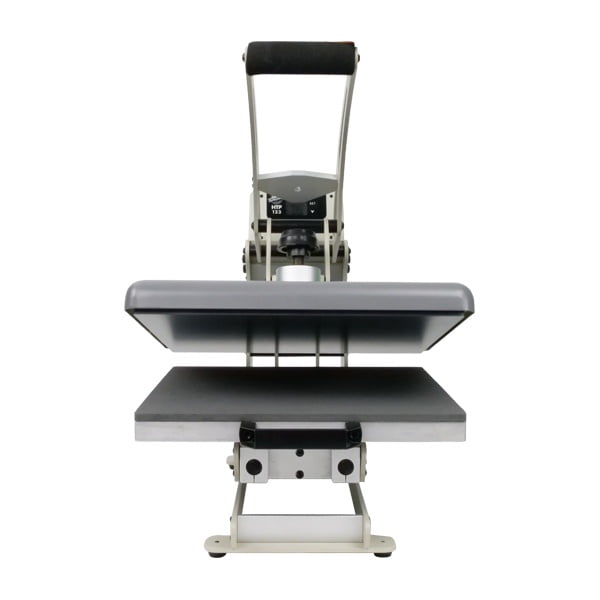
All clamshell Heat Presses
The Print & Cut Workflow Steps
| Phase | Action | Technical Key |
| 1. Design | Create artwork with a “Cut Path” layer. | Vector paths (Hairline). |
| 2. Print | Print design + Registration Marks. | Do not scale or rotate after printing. |
| 3. Align | Load media into the plotter. | Optical sensor must “read” the marks. |
| 4. Cut | Plotter cuts the contour path. | Blade depth must be set to “Kiss-Cut.” |
| 5. Finish | Weed away the excess waste. | Reveal the final custom-shaped design. |
Frequently Asked Questions
Why does my plotter miss the cut lines in Print & Cut?
The most common reason is poor lighting or incorrect registration mark placement. Ensure there is enough ‘white space’ around the marks for the optical eye to read them, and check that the media is loaded straight into the pinch rollers.
Do I need white toner for Print & Cut?
No. Print & Cut is actually the ideal alternative to white toner printing. By using opaque media (like TheMagicTouch OBM 5.4), you use the white background of the paper for your design and simply cut away the parts you don’t need.
What is a ‘Kiss-Cut’ vs. a ‘Die-Cut’?
In Print & Cut, a ‘Kiss-Cut’ slices only through the vinyl layer, leaving the backing paper intact. A ‘Die-Cut’ or ‘Perf-Cut’ slices through both the vinyl and the backing, creating individual, standalone stickers.
 4.7
4.7