
A Printer Driver is a specialized piece of software that acts as a translator between a computer’s operating system and a physical printing device. It converts the generic digital data from your design application into a specific language—such as GDI, PCL, or PostScript—that the printer hardware can interpret to execute commands like ink firing, paper movement, and heat management.
Read more
Why It Matters: Impact and Use
In the specialty transfer and textile printing industry, the printer driver is the primary control center for output quality. Proper driver configuration is a critical technical skill that demonstrates E-E-A-T (Expertise, Authoritativeness, and Trustworthiness), as incorrect settings can lead to poor ink adhesion, color shifts, or mechanical jams.
- Technical SEO & Indexing: For businesses selling printers, providing clear, downloadable driver links and “How-To” guides increases Authoritativeness and helps search engines index the site as a reliable technical resource.
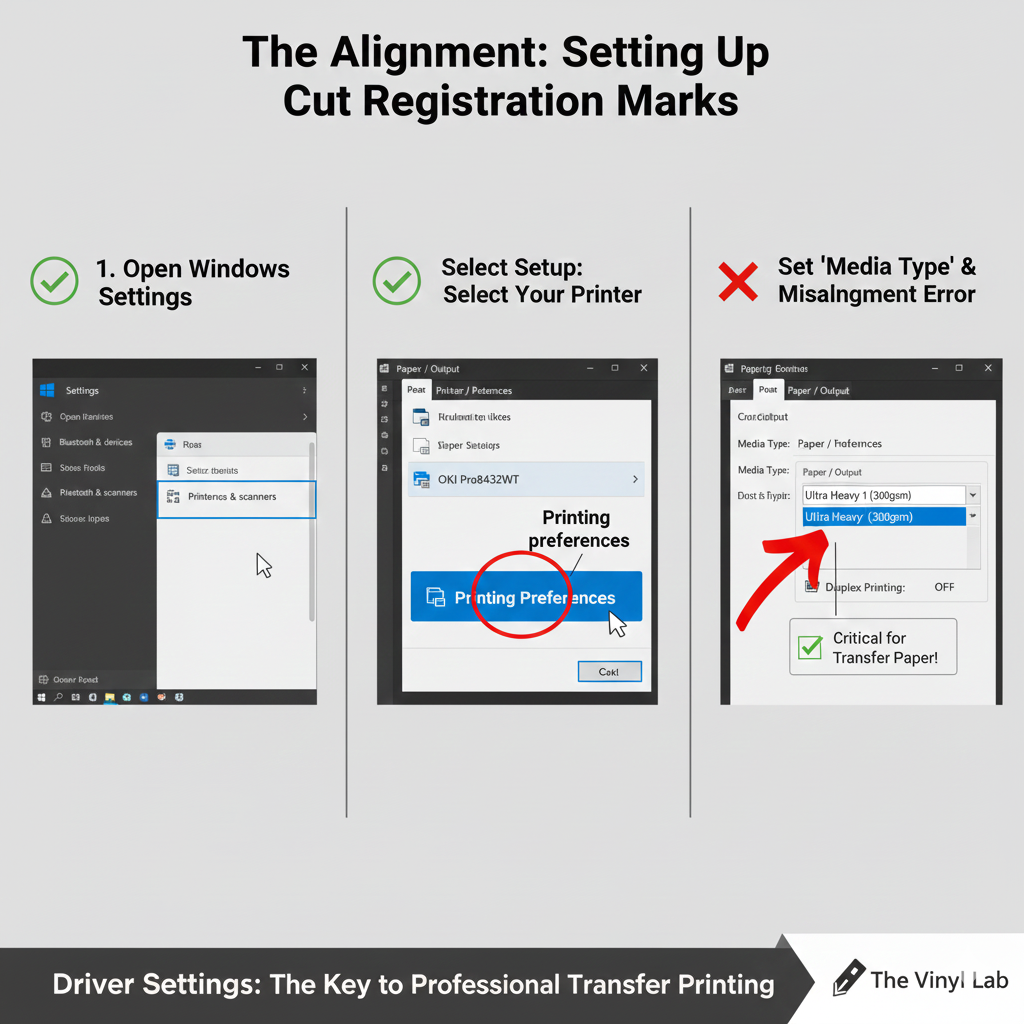
- Media Customization: Professional printer drivers allow you to specify the Media Type and Media Weight. For transfer papers like TheMagicTouch TTC 3.1, the driver tells the printer to adjust the fuser temperature and slow down the feed speed to ensure the toner bonds correctly to the coating without melting the paper.
- Color Management: While some users rely on a Print Utility or RIP, the standard driver often contains essential “Color Modes” (e.g., Vivid, Photo, or Greyscale). It dictates how the printer mixes CMYK inks to achieve the closest match to the digital file.
- Feature Control: Within the “Printer Properties” or “Preferences” menu, the driver controls hardware-specific functions such as disabling Duplexing (double-sided printing), which is vital because transfer media can only be printed on one side.
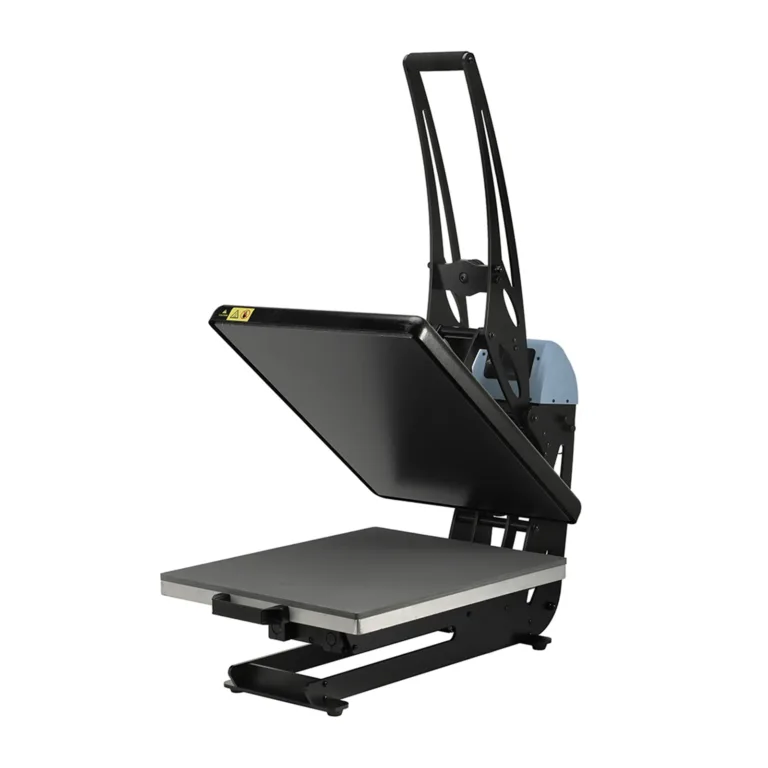
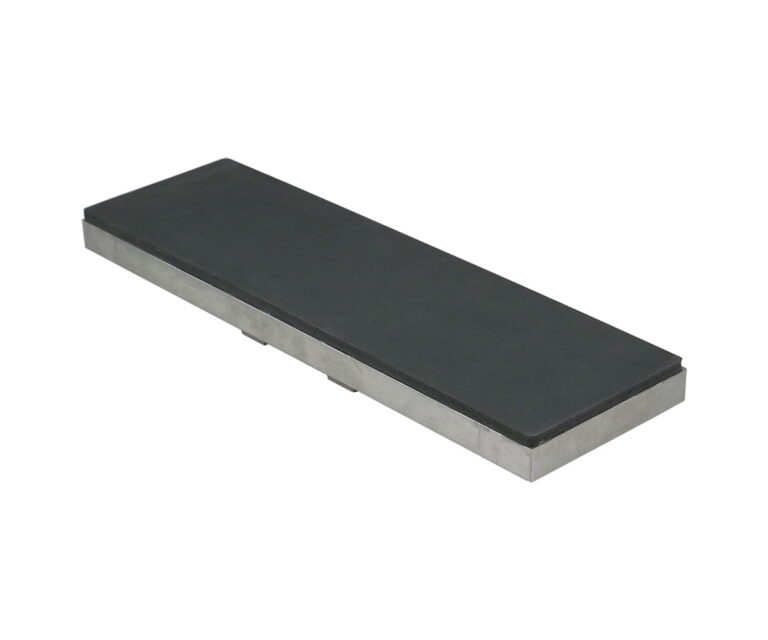
All clamshell Heat Presses
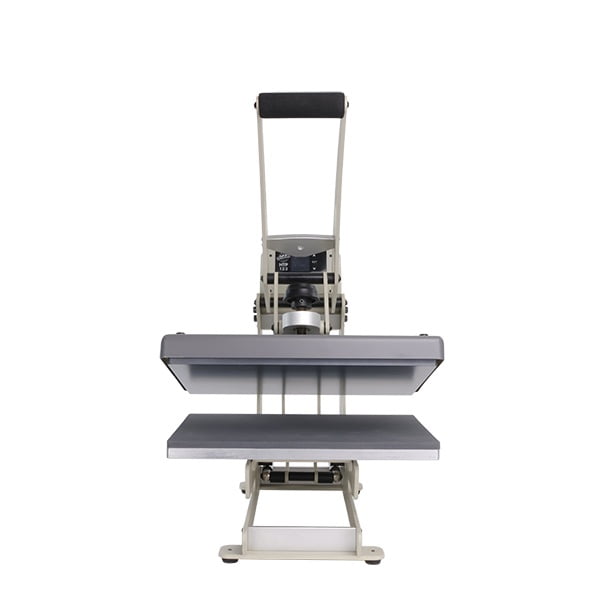
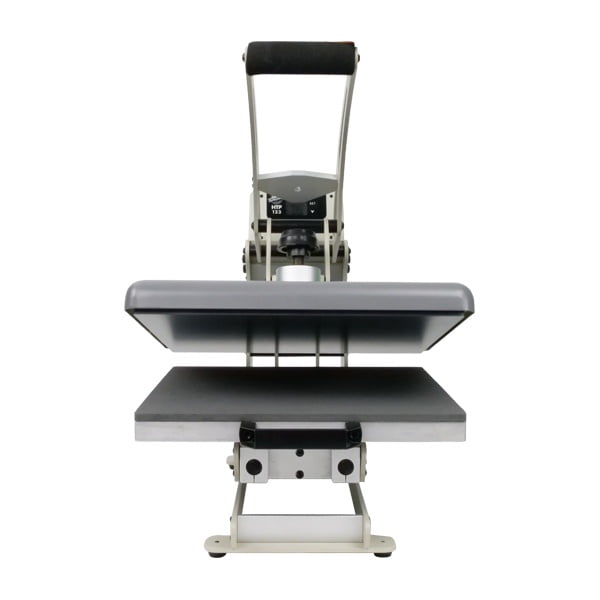
Key Settings for Transfer Printing
| Setting | Recommendation | Reason |
| Media Type | Heavyweight / Labels / Thick | Increases fuser heat for better toner bonding. |
| Print Quality | High / Best | Slows the printhead to allow for precise ink placement. |
| Duplexing | OFF | Prevents the printer from flipping the paper and jamming. |
| Mirror Image | ON (Process dependent) | Essential for most “cold peel” and “hot peel” transfers. |
Frequently Asked Questions
Why do I need to update my printer driver?
Manufacturers release driver updates to fix bugs, improve color accuracy, and ensure compatibility with new operating system versions. An outdated driver can cause communication errors or ‘garbled’ text printing.
Can I use a ‘Generic’ driver for transfer printing?
It is highly discouraged. Generic drivers lack the specific ‘Media Type’ settings (like ‘Ultra Heavy’) required to properly fuse toner to transfer paper, which often results in the toner rubbing off the sheet.
Where do I find the ‘Properties’ of my printer driver?
In Windows, go to ‘Settings > Devices > Printers & Scanners,’ click your printer, and select ‘Manage’ followed by ‘Printing Preferences.’ On a Mac, these options appear in the ‘Print’ dialog under ‘Show Details.
 4.7
4.7