
Read more
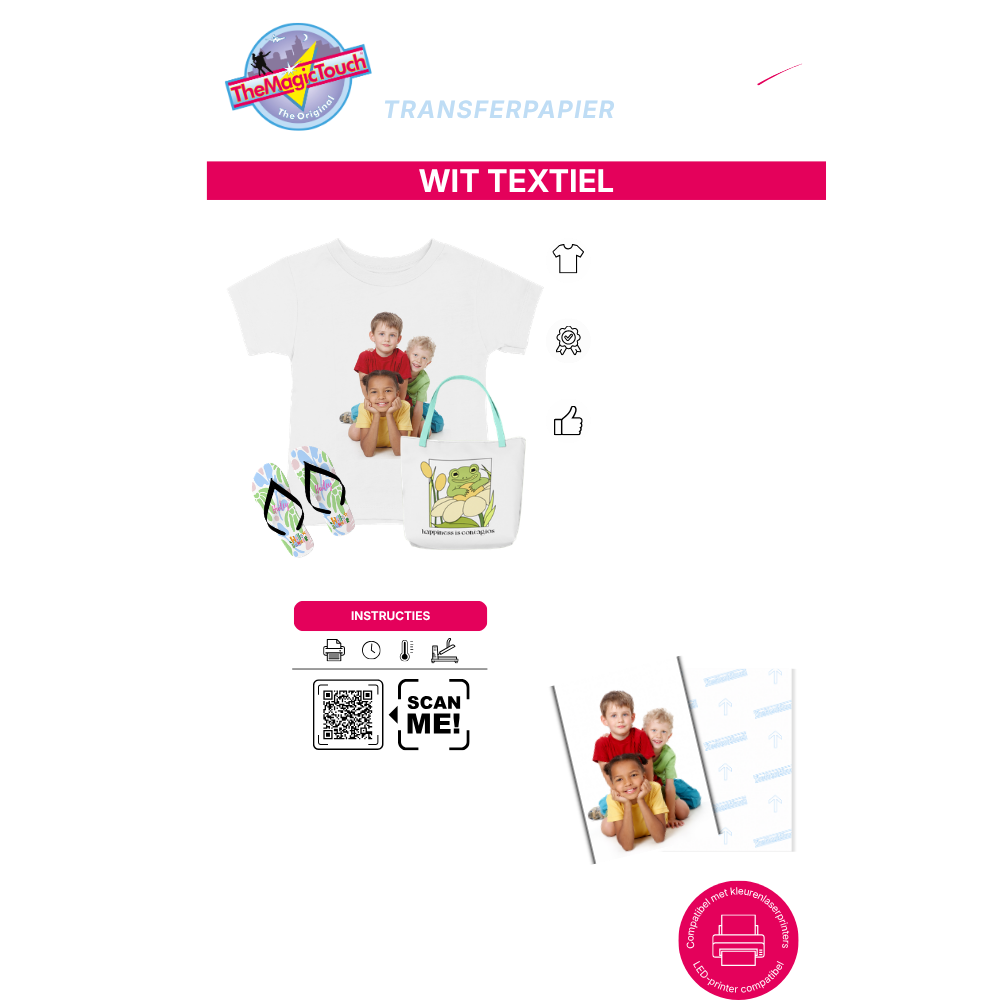
TheMagicTouch TTC 3.1 for White Textile and Fabrics

Color Laser / Led

15 seconds

190°C

High Pressure
- Print your design in mirror image
- Positioning transfer face down
- Set the heatpress 190°C and high pressure
- Press 15 second, rotate the object 180°C and press again 15 seconds
- Remove the transfer after pressing immediately (Hot Peel)
- Press 5 seconds with release paper to make your image smooth and softer.
TheMagicTouch OBM 5.4 for Dark Textile and Fabrics
Color Laser / Led
20 seconds
120°C
High Pressure
- Print your design (No mirror image)
- Peel and delete white background where necessary
- Remove backing paper or TheMagicTouch Release Paper
- Position the transfer on your product with the print facing up
- Cover with baking paper to prevent your heatpress
- Press for 20 seconds at 120°C with high pressure
- Remove backing paper or TheMagicTouch release paper
- Cover your design with TheMagicTouch T-Seal on top
- Press for 20 seconds with high pressure and remove TheMagicTouch T-Seal
TheMagicTouch CPM 6.2 for Hard Surfaces

Color Laser / Led
20 seconds
120°C
High Pressure
- Acrylic
- Peel and delete white background where necessary
- Remove backing paper or TheMagicTouch Release Paper
- Position the transfer on your product with the print facing up
- Cover with baking paper to prevent your heatpress
- Press for 20 seconds at 120°C with high pressure
- Remove backing paper or TheMagicTouch release paper
- Cover your design with TheMagicTouch T-Seal on top
- Press for 20 seconds with high pressure and remove TheMagicTouch T-Seal
Color Laser / Led
20 seconds
120°C
High Pressure
- Bottles
- Peel and delete white background where necessary
- Remove backing paper or TheMagicTouch Release Paper
- Position the transfer on your product with the print facing up
- Cover with baking paper to prevent your heatpress
- Press for 20 seconds at 120°C with high pressure
- Remove backing paper or TheMagicTouch release paper
- Cover your design with TheMagicTouch T-Seal on top
- Press for 20 seconds with high pressure and remove TheMagicTouch T-Seal
Color Laser / Led
20 seconds
120°C
High Pressure
- Cardboard
- Peel and delete white background where necessary
- Remove backing paper or TheMagicTouch Release Paper
- Position the transfer on your product with the print facing up
- Cover with baking paper to prevent your heatpress
- Press for 20 seconds at 120°C with high pressure
- Remove backing paper or TheMagicTouch release paper
- Cover your design with TheMagicTouch T-Seal on top
- Press for 20 seconds with high pressure and remove TheMagicTouch T-Seal
Color Laser / Led
20 seconds
120°C
High Pressure
- Cups
- Peel and delete white background where necessary
- Remove backing paper or TheMagicTouch Release Paper
- Position the transfer on your product with the print facing up
- Cover with baking paper to prevent your heatpress
- Press for 20 seconds at 120°C with high pressure
- Remove backing paper or TheMagicTouch release paper
- Cover your design with TheMagicTouch T-Seal on top
- Press for 20 seconds with high pressure and remove TheMagicTouch T-Seal
Color Laser / Led
20 seconds
120°C
High Pressure
- Glass
- Peel and delete white background where necessary
- Remove backing paper or TheMagicTouch Release Paper
- Position the transfer on your product with the print facing up
- Cover with baking paper to prevent your heatpress
- Press for 20 seconds at 120°C with high pressure
- Remove backing paper or TheMagicTouch release paper
- Cover your design with TheMagicTouch T-Seal on top
- Press for 20 seconds with high pressure and remove TheMagicTouch T-Seal
Color Laser / Led
20 seconds
120°C
High Pressure
- Leather
- Peel and delete white background where necessary
- Remove backing paper or TheMagicTouch Release Paper
- Position the transfer on your product with the print facing up
- Cover with baking paper to prevent your heatpress
- Press for 20 seconds at 120°C with high pressure
- Remove backing paper or TheMagicTouch release paper
- Cover your design with TheMagicTouch T-Seal on top
- Press for 20 seconds with high pressure and remove TheMagicTouch T-Seal
Color Laser / Led
20 seconds
120°C
High Pressure
- Magnet Foil
- Peel and delete white background where necessary
- Remove backing paper or TheMagicTouch Release Paper
- Position the transfer on your product with the print facing up
- Cover with baking paper to prevent your heatpress
- Press for 20 seconds at 120°C with high pressure
- Remove backing paper or TheMagicTouch release paper
- Cover your design with TheMagicTouch T-Seal on top
- Press for 20 seconds with high pressure and remove TheMagicTouch T-Seal
Color Laser / Led
20 seconds
120°C
High Pressure
- Metal/Aluminium
- Peel and delete white background where necessary
- Remove backing paper or TheMagicTouch Release Paper
- Position the transfer on your product with the print facing up
- Cover with baking paper to prevent your heatpress
- Press for 20 seconds at 120°C with high pressure
- Remove backing paper or TheMagicTouch release paper
- Cover your design with TheMagicTouch T-Seal on top
- Press for 20 seconds with high pressure and remove TheMagicTouch T-Seal
Color Laser / Led
20 seconds
120°C
High Pressure
- Mirrors
- Peel and delete white background where necessary
- Remove backing paper or TheMagicTouch Release Paper
- Position the transfer on your product with the print facing up
- Cover with baking paper to prevent your heatpress
- Press for 20 seconds at 120°C with high pressure
- Remove backing paper or TheMagicTouch release paper
- Cover your design with TheMagicTouch T-Seal on top
- Press for 20 seconds with high pressure and remove TheMagicTouch T-Seal
Color Laser / Led
20 seconds
120°C
High Pressure
- Mugs
- Peel and delete white background where necessary
- Remove backing paper or TheMagicTouch Release Paper
- Position the transfer on your product with the print facing up
- Cover with baking paper to prevent your heatpress
- Press for 20 seconds at 120°C with high pressure
- Remove backing paper or TheMagicTouch release paper
- Cover your design with TheMagicTouch T-Seal on top
- Press for 20 seconds with high pressure and remove TheMagicTouch T-Seal
Color Laser / Led
20 seconds
120°C
High Pressure
- Notebooks
- Peel and delete white background where necessary
- Remove backing paper or TheMagicTouch Release Paper
- Position the transfer on your product with the print facing up
- Cover with baking paper to prevent your heatpress
- Press for 20 seconds at 120°C with high pressure
- Remove backing paper or TheMagicTouch release paper
- Cover your design with TheMagicTouch T-Seal on top
- Press for 20 seconds with high pressure and remove TheMagicTouch T-Seal
Color Laser / Led
20 seconds
120°C
High Pressure
- Sliders
- Peel and delete white background where necessary
- Remove backing paper or TheMagicTouch Release Paper
- Position the transfer on your product with the print facing up
- Cover with baking paper to prevent your heatpress
- Press for 20 seconds at 120°C with high pressure
- Remove backing paper or TheMagicTouch release paper
- Cover your design with TheMagicTouch T-Seal on top
- Press for 20 seconds with high pressure and remove TheMagicTouch T-Seal
Color Laser / Led
20 seconds
120°C
High Pressure
- Tiles
- Peel and delete white background where necessary
- Remove backing paper or TheMagicTouch Release Paper
- Position the transfer on your product with the print facing up
- Cover with baking paper to prevent your heatpress
- Press for 20 seconds at 120°C with high pressure
- Remove backing paper or TheMagicTouch release paper
- Cover your design with TheMagicTouch T-Seal on top
- Press for 20 seconds with high pressure and remove TheMagicTouch T-Seal
TheMagicTouch RST 9.1 for Wood and Cork
Color Laser / Led
20 seconds
150°C
High Pressure
- Print your design in mirror image
- Positioning transfer face down
- Set the heatpress 150°C and medium pressure
- Positioning the product and place TheMagicTouch Application Sponge on top
- Moisturize the application sponge with water using a Plant Sprayer
- Press 40 seconds, rotate the object 180°C and press again 40 seconds
- Remove the application sponge and moisturize the transferpaper with water
- Remove the transferpaper after 30 seconds.
TheMagicTouch DCT 4.5 C (Clear) / 4.5 W (White) – Waterslide Decal
Color Laser / Led
20 seconds
150°C
High Pressure
- Print your design ( No mirror image)
- Cut out the design with scissors or plotter (Print& Cut)
- Place in water until the transfer layer slowly separates from the backing
- Gently slide the decal from the carrier onto the product.
- Use the TheMagicTouch squeegee or a dry cloth to remove excess water.
- Let it dry naturally for 24 hours
TheMagicTouch ORD 8.1 for Opaque Decoration
Color Laser / Led
20 seconds
150°C
High Pressure
- Print your design in mirror image
- Positioning transfer face down
- Set the heatpress 180°C and low pressure
- Positioning the product and place TheMagicTouch Application Sponge on top
- Moisturize the application sponge with water using a Plant Sprayer
- Press 40 seconds, rotate the object 180°C and press again 30 seconds
- Remove the application sponge and trim away any excess transfer paper.
TheMagicTouch Tattoo 2.1 for Temporary Tattoo
Color Laser / Led

Print & Cut

Bowl of water

Scissor
- Print your design (No mirror image)
- Remove the backing paper from the glue sheet and apply it to the printed transfer
- Apply the glue sheet gradually, using a squeegee to ensure a smooth application
- Cut out your design easily using scissors or the Print & Cut function.
- Place the tattoo onto the desired skin area or nail, design side facing down.
- Hold it in place for 20 seconds until the transfer paper releases automatically.
- Let the tattoo dry completely and it will hold 3-5 days, 3+ years only.
 4.8
4.8